AI Se Aisi Cinematic Video Banao: Create Professional Cinematic Videos Using Google Flow
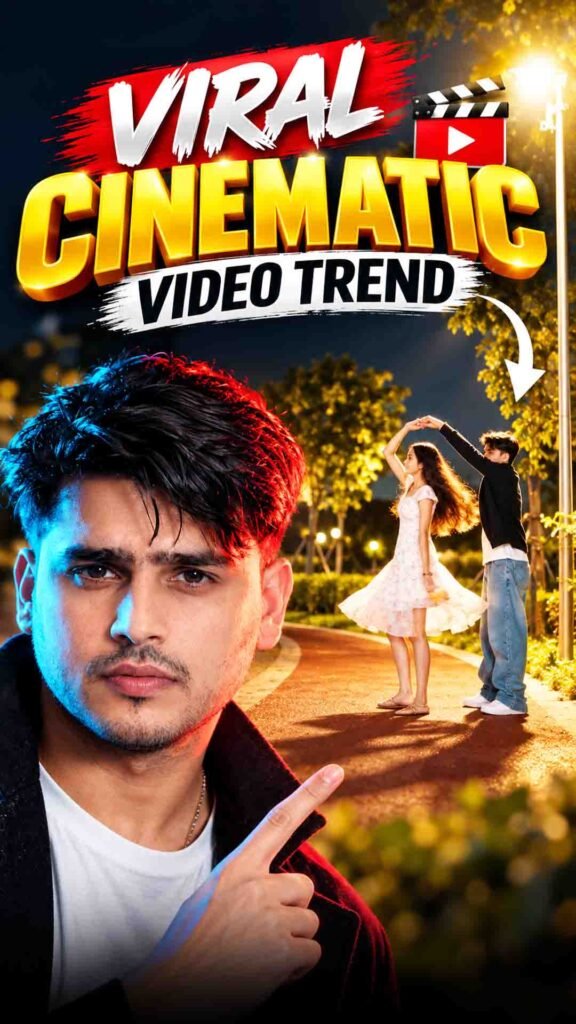
Want to transform your normal video into a professional-looking cinematic video? Now you can use AI tools to create impressive visuals, smooth camera movements, and dramatic scenes without complicated editing.
With Google Flow AI, you can generate cinematic video scenes using detailed prompts and supported reference inputs. You can describe the camera movement, lighting, background, subject actions, and overall visual style to create the look you want.
You can then use CapCut to combine your generated clips, add music, adjust colours, and prepare the final video for Instagram Reels or YouTube Shorts.
Whether you want cinematic walking shots, dramatic entry scenes, travel videos, or stylish social media content, this AI workflow can help you explore different creative ideas.
In this guide, you will learn how to create cinematic AI videos using Google Flow and CapCut.
AI Cinematic Video Prompt
Prompt
## GOOGLE FLOW OMNI — REALISTIC VIDEO RECREATIONCreate a photorealistic 9-second romantic video using my uploaded face photo as the exact identity reference for the male character. Recreate the described scene as faithfully as possible. Prioritize the original environment, character positions, movement sequence, camera framing, and realistic human motion. Do not invent additional actions or objects.### MALE CHARACTER — FACE IDENTITY LOCKUse my uploaded face photo as the identity reference for the male character. Preserve my exact facial identity, facial structure, eyes, nose, lips, skin tone, and distinctive features. Keep my face consistent throughout the video.The male character wears a black jacket over a plain white shirt, light-blue jeans, white sneakers, and a wristwatch. Preserve the same outfit, hairstyle, body proportions, and appearance throughout the clip.### FEMALE CHARACTERA young woman with long, loose dark hair, wearing a white sleeveless floral dress and light-coloured shoes. Her dress moves naturally as she walks and spins. Keep her appearance, hairstyle, and outfit consistent. Her hands are empty throughout the scene.Do not add flowers, a bouquet, accessories, bags, or any other props.### ENVIRONMENT AND BACKGROUND LOCKA quiet outdoor jogging track at night. The ground is a reddish-orange rubber running track with two narrow white lane markings curving through the foreground and into the distance.A sloping grassy embankment borders the track. Low green hedges, a few small trees, and a simple open-sided shelter are visible in the distant background. A large, dark grey building or wall stretches across the rear of the scene. A tall, slim streetlight pole stands near the centre-right, with a bright white light illuminating the track and surrounding grass.The sky is deep navy blue. The scene has realistic nighttime exposure, natural shadows, bright streetlamp highlights, and the appearance of genuine smartphone footage.Keep the same track layout, grass, hedge, trees, shelter, building, streetlight, and lighting throughout the video. Do not generate a different park, road, garden, or location.### EXACT ACTION SEQUENCE**0.0–0.7 seconds — Close-up of joined hands**Start with an extreme low-angle close-up of two people holding hands. Their joined hands occupy the centre of the foreground. The man’s black sleeve and wristwatch are visible. The reddish-orange running track and curved white lane markings appear softly out of focus behind them. Do not show the characters’ faces in this opening shot.**0.7–2.5 seconds — Man enters and runs away**Cut directly to a low-positioned, wide-angle view of the same running track. The man, seen from behind, moves away from the camera along the curved track. He runs naturally toward the middle distance, with realistic arm swings, foot contact, and body movement. His black jacket, white shirt, light-blue jeans, and white sneakers remain clearly identifiable.**2.5–3.6 seconds — Man stops and waits**The man slows down, stops on the track, and turns around to face the direction from which the woman will approach. He stands upright in a relaxed posture and waits for her. Keep his full body visible. The camera remains stationary.**3.6–6.8 seconds — Woman approaches**The woman enters from the near foreground and moves toward the man along the curved track. Initially, she appears close to the camera and may be partially cropped by the frame. She walks briskly toward him, with her long dark hair moving naturally and the pleated floral dress swaying with each step.The man stays in his position, facing her. Gradually, the distance between them decreases until she reaches him. Her hands remain empty.**6.8–9.0 seconds — Romantic 360-degree spin**When the woman reaches him, the couple face each other and hold hands naturally. The man raises their joined hands above her head and guides her into one complete 360-degree romantic spin. The woman turns smoothly underneath his raised arm while the man pivots slightly to guide her. Her hair and dress respond naturally to the rotation. Maintain believable foot placement, natural balance, correct hand contact, and realistic body mechanics.Finish with the couple close together, still holding hands, on the same running track.### CAMERA AND COMPOSITIONThe opening hand close-up lasts approximately 0.7 seconds. After that, use a single continuous, fixed, low-positioned wide shot until the end.Keep the curved running track in the foreground, the grassy embankment on the left, the hedge and dark building in the background, and the streetlight near the centre-right. Both characters must remain visible during their approach and final spin.No unnecessary camera movements, zooms, reframing, additional cuts, or location changes. Maintain consistent perspective and realistic spatial relationships between the characters and the environment.### REALISM AND QUALITYPhotorealistic live-action appearance, natural human motion, realistic facial details, consistent identity, accurate hand anatomy, natural cloth physics, believable hair movement, realistic nighttime lighting, authentic shadows, subtle motion blur, and natural smartphone-camera imperfections.### STRICT NEGATIVE INSTRUCTIONSDo not add flowers or a bouquet. Do not add any objects to the woman’s hands. Do not change either character’s outfit. Do not change the background, track layout, streetlight position, or lighting. Do not replace the running action with bending or unrelated gestures. Do not replace the final spin with a hug, lift, or different dance. Do not add extra characters, dialogue, text, logos, or props. No face flickering, identity changes, distorted hands, extra fingers, floating feet, artificial slow motion, or animated appearance.Follow the specified action order and preserve my facial identity throughout the entire video.
How to Create Cinematic Videos Using Google Flow
Follow these simple steps to create your own cinematic video.
Step 1: Open Google Flow
First, open Google Flow and sign in using your Google account.
Go to the video generation interface and check the available options. Select a suitable workflow according to the type of video you want to create.
Before starting, decide what kind of cinematic scene you want.
For example:
- A cinematic walking shot.
- A dramatic entry scene.
- A luxury lifestyle video.
- A cinematic travel video.
- A professional-looking outdoor scene.
Having a clear idea will make it easier to prepare your prompt.
Step 2: Prepare Your Reference Image or Video
Depending on your selected workflow, prepare your original photo, supported reference image, or video input.
If you want the generated video to feature you, use a clear reference photo.
For better results, choose an image where:
- Your face is clearly visible.
- Your hairstyle is easy to recognise.
- Your clothing is visible.
- Your body proportions are clear.
- The lighting is natural.
If you are using an existing video as a reference, observe its camera angle, subject movement, and background.
Remember that available image and video input options can vary depending on the selected Google Flow model and workflow.
Step 3: Add the Cinematic Video Prompt
Now copy your complete Cinematic Video Prompt from the section above.
Paste it into the Google Flow prompt field.
Your prompt should explain the scene clearly instead of simply asking for a cinematic look.
Include important details such as:
- Camera movement.
- Subject actions.
- Background environment.
- Lighting conditions.
- Camera angles.
- Visual composition.
- Overall cinematic style.
For example, describe whether the camera should follow the subject, move around them, or capture a close-up shot.
You can also describe natural motion blur, depth of field, environmental lighting, and realistic camera movement.
Step 4: Generate Your AI Video
After adding your prompt and supported reference inputs, check the available generation settings.
Now click the Generate button and wait for Google Flow to create your video.
Once the generation is complete, watch the output carefully.
Check whether:
- Subject movement looks natural.
- Camera movement is smooth.
- Facial details look consistent.
- Hands and body proportions look realistic.
- Background details remain visually stable.
If something looks incorrect, refine your prompt and generate another version.
Step 5: Improve the Cinematic Look
You can create different versions by changing specific details in your prompt.
For example, you can adjust:
- Camera movement.
- Lighting style.
- Subject movement.
- Background location.
- Camera distance.
- Scene composition.
Try to make small changes at a time so you can understand which instructions improve the result.
How to Make Your AI Video Look More Cinematic
A cinematic video is not just about dark colours or dramatic effects. Camera movement, lighting, framing, and natural subject movement are equally important.
Here are some elements that can improve your video.
1. Smooth Camera Movement
Use realistic tracking shots, slow camera movements, and natural handheld footage to create a professional visual style.
2. Natural Lighting
Describe the lighting according to your scene.
For example, outdoor scenes can use natural sunlight, while indoor scenes can use soft cinematic lighting.
3. Realistic Motion Blur
Natural motion blur can make moving subjects and camera movements look more realistic.
4. Depth of Field
A suitable depth of field can help separate the subject from the background and create a professional camera look.
5. Cinematic Composition
Pay attention to subject placement, camera angles, background details, and framing.
6. Consistent Visual Style
If you are creating multiple clips, try to maintain similar lighting, colour tones, and character appearance throughout the video.
This will help your final edit feel like one connected cinematic sequence.
How to Edit Your AI Cinematic Video in CapCut
Once your AI-generated clips are ready, you can use CapCut to create the final video.
Step 1: Open CapCut
Open CapCut on your mobile phone or computer and create a new project.
Import all your AI-generated video clips.
Step 2: Arrange Your Clips
Place your clips in the correct order according to your story.
Trim unwanted portions and keep the best parts of each generated scene.
Step 3: Add Background Music
Choose music that matches the mood of your video.
For example:
- Dramatic music for cinematic entry scenes.
- Relaxing music for travel videos.
- Energetic music for stylish walking shots.
- Emotional music for storytelling videos.
You can also add suitable sound effects to improve the viewing experience.
Step 4: Adjust Colours
Use CapCut’s colour adjustment tools to improve the visual appearance.
You can adjust:
- Exposure.
- Contrast.
- Highlights.
- Shadows.
- Saturation.
- Temperature.
Avoid adding too much contrast or saturation. Keep the final video natural and balanced.
Step 5: Add Transitions
Use simple transitions to connect different clips.
Choose transitions that match the movement and mood of your video. Avoid adding too many unnecessary effects.
Step 6: Export Your Final Video
Once your editing is complete, review the entire video.
For Instagram Reels and YouTube Shorts, you can use a vertical 9:16 aspect ratio.
Check the video quality, audio levels, and transitions before exporting.
Best Cinematic Video Ideas to Try with AI
Here are some creative video ideas you can experiment with.
1. Cinematic Walking Video
Create a stylish walking scene with natural camera tracking and a beautiful background.
2. Luxury Lifestyle Video
Generate a premium-looking scene with stylish surroundings, elegant lighting, and smooth camera movement.
3. Dramatic Entry Video
Create a cinematic entry with a slow camera movement and dramatic lighting.
4. Travel Cinematic Video
Transform your travel ideas into cinematic scenes featuring beautiful locations and realistic environmental details.
5. Professional Portrait Video
Create close-up shots with natural expressions, soft lighting, and realistic depth of field.
Tips to Get Better Results from AI Video Generation
Follow these tips to improve your cinematic videos.
- Use clear references: High-quality photos can help AI understand your appearance.
- Describe the scene clearly: Explain exactly what should happen in the video.
- Focus on camera movement: Mention whether you want tracking shots, close-ups, or handheld footage.
- Keep actions simple: Too many movements in one scene can make the output look unnatural.
- Use realistic lighting: Match the lighting with the environment.
- Maintain character consistency: Keep your appearance and clothing instructions consistent across scenes.
- Generate multiple versions: Compare different results and choose the best one.
- Review every clip: Check faces, hands, movements, and background details before editing.
Frequently Asked Questions (FAQs)
1. Can I create cinematic videos using Google Flow?
Yes. You can use Google Flow’s available video generation features to create cinematic scenes with detailed prompts and supported reference inputs.
2. Do I need a professional camera?
No. You can use AI-generated scenes and suitable reference images to experiment with professional-looking cinematic visuals.
3. Can I turn my normal photo into a cinematic video?
Yes. You can use your photo as a reference in workflows that support image inputs and generate a cinematic scene based on your instructions.
4. Can I use an existing video as a reference?
Some Google Flow workflows may support video references or video inputs. Available options depend on the selected model and workflow.
5. Why does my AI video sometimes look unrealistic?
AI can sometimes create unnatural facial details, body movements, camera motion, or background elements. Try using clearer references and refining your prompt.
6. Can I edit AI-generated videos in CapCut?
Yes. You can import your generated clips into CapCut, arrange them, trim unwanted parts, add music, adjust colours, and export the final video.
7. Which video format is best for Instagram Reels?
A vertical 9:16 aspect ratio is suitable for Instagram Reels and YouTube Shorts.
Final Words
Creating cinematic videos with AI is a great way to experiment with creative video ideas.
With Google Flow, you can generate different scenes using detailed prompts and supported reference inputs. Then, with CapCut, you can combine your clips, add music, improve colours, and create a professional-looking final video.
Whether you want cinematic walking shots, dramatic entries, travel visuals, or stylish social media content, this workflow can help you bring your ideas to life.
Try it yourself and create your own cinematic AI video! 🎬✨