Diwali Viral AI Video Trend: Create a Cinematic Diwali Video for Free
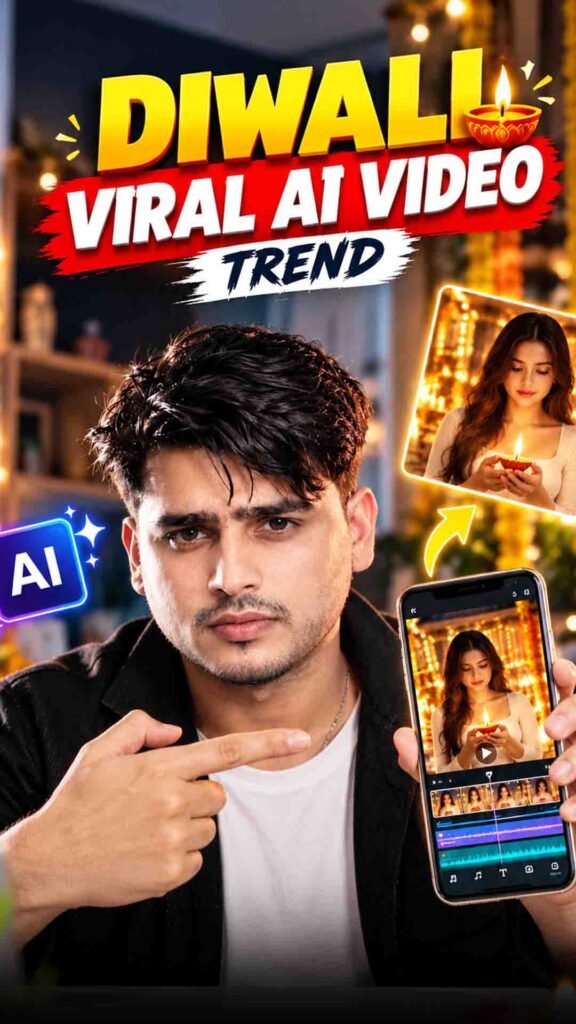
Instagram par Diwali ke cinematic AI videos kaafi attention grab karte hain. In videos mein beautiful festive lighting, glowing diyas, traditional decorations aur cinematic effects dekhne ko milte hain.
The best part is that you can also try creating your own Diwali AI video using tools like Google Flow. You just need a clear photo of yourself, a reference video, and the right prompt.
In this guide, you will learn how to create your own Diwali Viral AI Video Trend step by step.
Diwali Viral AI Video Prompt 🪔
Prompt
Use the provided reference video ONLY as a motion, camera, timing, and performance reference, and use the provided target image as the absolute visual identity reference. Recreate the video using the person/character from the target image while accurately transferring the movement and camera behavior from the reference video. The target image must remain the source of truth for the character’s appearance. Keep the character exactly consistent throughout the entire video: same face, facial structure, eyes, eyebrows, nose, lips, jawline, skin tone, realistic skin texture, hairstyle, hair length, shape, texture, hairline, body shape, proportions, clothing, clothing colors, fabric, design, details, accessories, and overall identity. Do NOT redesign, beautify, replace, modify, age, de-age, or reinterpret the person. Do not change the outfit or hairstyle when the body moves. Analyze the reference video frame-by-frame and reproduce its movements as accurately as possible, including head movement, facial expressions, eye direction, gaze, eyebrow movement, mouth movement, blinking, neck movement, shoulders, arms, hands, upper-body movement, walking, posture, natural weight shifting, timing, rhythm, and the exact start and end positions of movements. The target character must perform the same actions as the person in the reference video while remaining visually identical to the target image. Copy the reference video’s camera position, angle, distance, height, movement, handheld motion, camera shake, push-in, pull-out, pan, tilt, tracking, framing, subject positioning, perspective changes, and movement speed. Do not introduce any camera movements that are not present in the reference video. Transfer the facial performance naturally and accurately, matching the original expression intensity, smile or neutral expression, eye movement, eyebrow movement, head tilt, lip movement, and emotional timing without altering the target person’s identity. The face must remain recognizable as the exact same person from the target image in every frame. Create highly realistic motion with natural human biomechanics. Avoid face morphing, identity drift, facial distortion, melting features, unnatural eye movement, extra or missing fingers, deformed hands, body warping, clothing changes, hair changes, artificial facial expressions, rubber-like movement, flickering, and frame-to-frame inconsistencies. Hands, arms, face, hair, and clothing must remain anatomically and visually consistent throughout the video. Maintain strong temporal consistency so the character’s face, hair, body, clothing, accessories, and skin texture remain stable throughout the entire sequence, with no random changes between frames. Maintain the same composition and subject framing as the reference video wherever possible, adapted to a full-frame 16:9 horizontal landscape output. If the person moves closer to or farther from the camera, reproduce the same relative movement with the target character. Keep the video full-frame without black bars, letterboxing, pillarboxing, or artificial borders, and do not add unnecessary background elements. Output: 16:9 horizontal landscape, 1920×1080 Full HD, 30 FPS, normal real-time speed (1×). Create a cinematic but natural-looking landscape video that looks like the exact person from the target image naturally performing the exact movements and camera performance from the reference video. PRIORITY ORDER: (1) Target image identity and appearance, (2) Reference video motion and performance, (3) Reference video camera movement, (4) Natural physics and realism, (5) Visual style.
Watch the Diwali Viral Trend Video
How to Create the Diwali Viral AI Video Using Google Flow
Follow these simple steps to create your own festive AI video.
Step 1: Download the Reference Video
First, get the reference video that shows the Diwali trend you want to recreate.
Keep this video ready so you can use it as a visual reference, if your available Google Flow workflow supports reference video uploads.
Step 2: Open Google Flow
Open Google Flow and start a new project. Sign in if required and check which video generation features are available in your account.
Step 3: Upload Your Photo
Choose a clear photo of yourself.
For better results, use a high-quality image where your face is clearly visible and the lighting is good. Avoid blurry or heavily edited photos.
Step 4: Add the Reference Video
Upload the reference video if your current Flow workflow supports it. This can help you guide the visual style and movement you want to recreate.
Available upload options may vary depending on the tools and features offered in your account.
Step 5: Copy and Paste the Prompt
Copy your complete prompt from the section above and paste it into Google Flow.
The prompt should describe the desired Diwali atmosphere, visual details, camera movement, and overall cinematic style.
Step 6: Generate Your AI Video
Click the Generate button and wait for the video to finish processing.
Review the result to check whether the lighting, movement, festive details, and appearance match your expectations.
Step 7: Improve Your Video
If the first result is not what you wanted, adjust your instructions and generate another version.
You can ask for more natural movement, better festive lighting, or a composition that keeps you clearly visible.
Step 8: Prepare It for Instagram Reels
For Instagram Reels, use a vertical 9:16 aspect ratio when available.
Before posting, watch the full video and check for visual errors, unnatural movements, or changes to your face.
Tips to Create a Better Diwali AI Video
Want your video to look more cinematic? Keep these tips in mind.
- Use a clear photo: A sharp photo can help AI create a more recognisable result.
- Choose a good reference: Use a reference video that clearly shows the style you want.
- Describe the festive setting: Mention diyas, warm lights, decorations, and other details that fit your idea.
- Keep the movement natural: Avoid asking for too many actions in one short video.
- Check your face: AI may change facial details, so review the final result carefully.
- Use vertical framing: A 9:16 video is suitable for Instagram Reels.
- Try small changes: If the result is not right, adjust the prompt instead of changing every instruction at once.
Can You Create a Diwali AI Video for Free?
You may be able to try this trend without paying, depending on the features and usage limits available in your Google Flow account.
Free access, generation limits, and available features can change over time. Check your account before starting, as some options may require paid access or have limited availability.
Frequently Asked Questions (FAQs)
1. What is the Diwali Viral AI Video Trend?
It is a festive video trend in which AI is used to create cinematic Diwali visuals, often featuring the person in the uploaded photo.
2. Can I create this Diwali video using Google Flow?
You can use Google Flow’s available video generation features to try creating a similar video. The exact workflow depends on the tools and upload options available in your account.
3. Do I need my own photo?
If you want the video to feature you, upload a clear photo as a reference when the selected workflow supports it.
4. Do I need a reference video?
A reference video can help you understand and recreate a particular style. However, whether you can upload it directly depends on the features available in your workflow.
5. Can I create the video for Instagram Reels?
Yes. Choose a vertical 9:16 format if it is available in your video generation settings.
6. Will the AI keep my face exactly the same?
Not always. A clear reference photo and specific instructions may help, but AI can still change facial details or appearance.
Final Words
The Diwali Viral AI Video Trend is a fun way to create festive content for Instagram. With a clear photo, a suitable reference, and a detailed prompt, you can experiment with cinematic lighting, beautiful Diwali decorations, and creative video effects.
Follow the steps above, try your own version, and create a festive video for your next Reel! 🪔✨