Viral Diwali Photo Trend: Create AI Diwali Photo Using ChatGPT
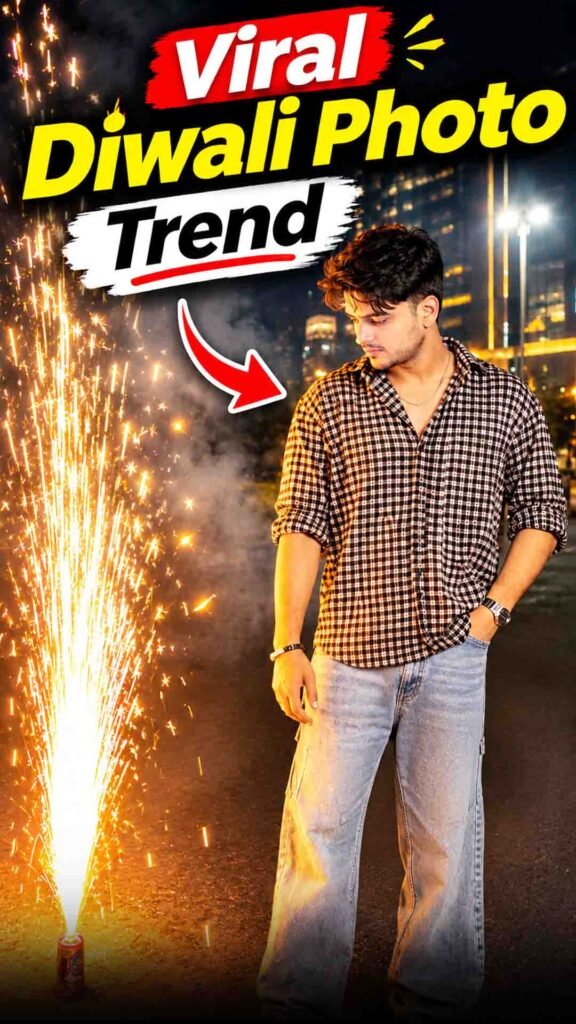
A beautiful Diwali photo trend is going viral on Instagram, and now you can create a similar picture using ChatGPT!
In this trend, normal photos are transformed into beautiful and cinematic Diwali portraits. The generated images can include glowing diyas, warm festive lighting, sparkling backgrounds, traditional decorations, and a magical Diwali atmosphere.
The best part is that you do not need any professional photo-editing software. You just need to upload your photo to ChatGPT and enter a suitable AI prompt.
ChatGPT can use your uploaded picture as a reference and try to create a beautiful Diwali-themed image based on your instructions.
You can use these AI-generated photos for Instagram posts, Stories, profile pictures, and festive social media content.
Let’s see how you can create your own viral Diwali photo using ChatGPT.
Viral Diwali Photo Prompt
Prompt
{ “image_type”: “Ultra Realistic Night Photography”, “aspect_ratio”: “9:16”, “resolution”: “4K Ultra HD”,“reference_image”: { “usage”: “Use the uploaded image as the primary visual and identity reference.”, “identity_lock”: “Preserve the exact face, facial structure, skin tone, hairstyle, hair texture, facial features, body proportions and identity of the person. Do not change, beautify, feminize, masculinize or reinterpret the person’s appearance.”, “gender_lock”: “Automatically follow the gender and appearance of the person in the uploaded reference image. Do not assume a specific gender.” },“subject”: { “gender”: “Automatically determined from the reference image”, “pose”: “Standing naturally on a road beside a large fountain firework, body slightly turned towards the firework, head tilted down, looking at the sparks.”, “expression”: “Natural, calm and candid expression.”, “appearance”: “Maintain the exact hairstyle, facial hair (if present), body structure and natural appearance from the reference image.”, “outfit”: { “style”: “Stylish black and white small-checkered oversized button-up shirt, sleeves rolled up to elbows, top buttons slightly open.”, “bottom”: “Loose-fit light blue washed baggy denim jeans.”, “footwear”: “Clean white sneakers.”, “fit”: “Adapt naturally to the subject’s gender, body proportions and physique without changing their identity.” }, “accessories”: [ “Silver wristwatch on left wrist”, “Simple bracelet on right wrist”, “Thin chain necklace” ] },“firework”: { “type”: “Large ground fountain firework”, “position”: “On the road to the left side of the person”, “effect”: “Bright golden and white sparks shooting vertically and spreading outward in multiple directions.”, “smoke”: “Thick white and grey smoke rising behind the person and filling the middle background.”, “lighting”: “Firework sparks illuminating the person’s outfit, face, hands and surrounding road with warm golden light.” },“background”: { “location”: “Modern urban city street at night”, “buildings”: “Tall glass skyscrapers with illuminated golden windows.”, “signboard”: “A glowing golden building sign reading THE ICONIC.”, “streetlights”: “Tall street lamps glowing brightly in the background.”, “environment”: “Dark night sky, empty asphalt road, distant city lights and realistic fireworks smoke.” },“camera”: { “shot_type”: “Full body vertical portrait”, “angle”: “Eye-level slightly wide-angle smartphone photography”, “composition”: “Person positioned on the right side, fountain firework on the left side.”, “lens”: “35mm”, “focus”: “Sharp focus on the person and firework.”, “depth_of_field”: “Natural realistic background depth.” },“lighting”: { “style”: “Cinematic night photography”, “main_light”: “Bright golden firework illumination.”, “secondary_light”: “White streetlights and warm building lights.”, “contrast”: “Natural high contrast.”, “atmosphere”: “Dramatic, festive and realistic.” },“quality”: { “style”: “Photorealistic DSLR photography”, “details”: “Realistic skin texture, natural fabric details, accurate hands, realistic smoke and individual firework sparks.”, “color_grading”: “Dark cinematic night tones with warm golden highlights.”, “sharpness”: “Ultra detailed.”, “noise”: “Natural low-light camera grain.” },“negative_prompt”: [ “Cartoon”, “Anime”, “Artificial CGI look”, “Face distortion”, “Different identity”, “Gender transformation”, “Extra fingers”, “Deformed hands”, “Extra limbs”, “Wrong outfit”, “Unnatural body proportions”, “Blurred subject”, “Overexposed fireworks”, “Fake smoke”, “Daylight”, “Watermark”, “Instagram interface”, “Phone status bar”, “Comment section”, “Unwanted text” ] }
How to Create a Viral Diwali Photo Using ChatGPT
Step 1: Open ChatGPT
First, open ChatGPT and start a new chat with image generation support.
You can use ChatGPT on your mobile phone or computer.
Make sure image generation is available for your account.
Step 2: Upload Your Photo
Now upload a clear photo of yourself.
For better results, choose a high-quality picture where your face is clearly visible.
Try to use a photo with natural lighting and avoid blurry images or heavy filters.
Your uploaded photo will act as a visual reference for the AI.
Step 3: Paste the Diwali Photo Prompt
After uploading your photo, copy the prompt from the section above and paste it into the ChatGPT message box.
The prompt will guide ChatGPT on how to transform your normal photo into a beautiful Diwali-themed portrait.
You can describe details such as:
- Beautiful glowing diyas
- Warm golden festive lighting
- A cinematic Diwali background
- Traditional festive decorations
- Realistic skin texture
- Professional portrait photography
You can also customize the background, lighting, outfit, and overall photo style according to your preference.
Step 4: Keep Your Original Face
If you want the generated photo to look like your original picture, ask ChatGPT to preserve your facial identity.
You can mention that your original face shape, eyes, nose, lips, skin tone, and hairstyle should remain as close to the reference photo as possible.
This can help the AI understand that you want a festive makeover without changing your recognizable appearance.
However, AI may still make small changes to facial details, so always check the final result.
Step 5: Generate Your Diwali Photo
Once you have uploaded your photo and added the prompt, submit your request.
ChatGPT will try to generate a new Diwali-themed image based on your instructions.
After the image is ready, check these details:
- Does your face look close to the original photo?
- Are the diyas and decorations realistic?
- Does the lighting look natural?
- Is the background beautiful and cinematic?
- Does the overall image match your desired style?
If something does not look right, ask ChatGPT to make specific corrections.
You can also generate different variations and select your favourite image.
Step 6: Save and Share Your Photo
Once you are happy with the final result, use the available image download option to save it.
Now you can share your beautiful AI Diwali photo on:
- Instagram Posts
- Instagram Stories
- WhatsApp Status
- Your Social Media Profile
You can also add a festive caption and share your new AI-generated Diwali look with your friends and followers.
Tips for Better AI Diwali Photos
Follow these simple tips to get better results:
- Use a Clear Photo: Upload a high-quality image where your face is clearly visible.
- Avoid Heavy Filters: Natural photos can provide better visual references.
- Describe the Background: Mention diyas, festive decorations, and warm lighting.
- Choose a Cinematic Style: Ask for realistic photography, natural shadows, and beautiful lighting.
- Preserve Your Facial Features: Clearly explain that you want to keep your original appearance.
- Try Different Variations: Generate a few images and choose the one you like most.
Frequently Asked Questions (FAQs)
1. Can I create a Diwali photo using ChatGPT?
Yes. You can upload your photo to ChatGPT and use an AI prompt to create a beautiful Diwali-themed image.
2. Can I create a viral Diwali photo for free?
You may be able to use ChatGPT’s available free image generation features. However, access and usage limits can vary depending on your account and plan.
3. Do I need a professional photo?
No. A normal, clear photo is enough to get started. However, a high-quality reference image can help the AI understand your appearance.
4. Can ChatGPT keep my original face?
ChatGPT can use your uploaded photo as a reference and try to preserve your facial features. However, exact identity preservation is not guaranteed.
5. Can I share my AI Diwali photo on Instagram?
Yes. You can share your generated image on Instagram Posts, Stories, WhatsApp Status, and other social media platforms.
Final Words
Creating a beautiful Diwali photo with AI is now simple and fun.
You do not need professional editing skills or complicated software. Just open ChatGPT, upload your photo, and add the prompt from the section above.
Try different festive backgrounds, lighting styles, and decorations to create your own cinematic Diwali look.
Create your photo and share your favourite result with your friends and followers!